Deploy failed? Build error? Missing env var? This guide explains common deployment errors in plain English and gives you clear steps to fix them so you can get back to shipping.
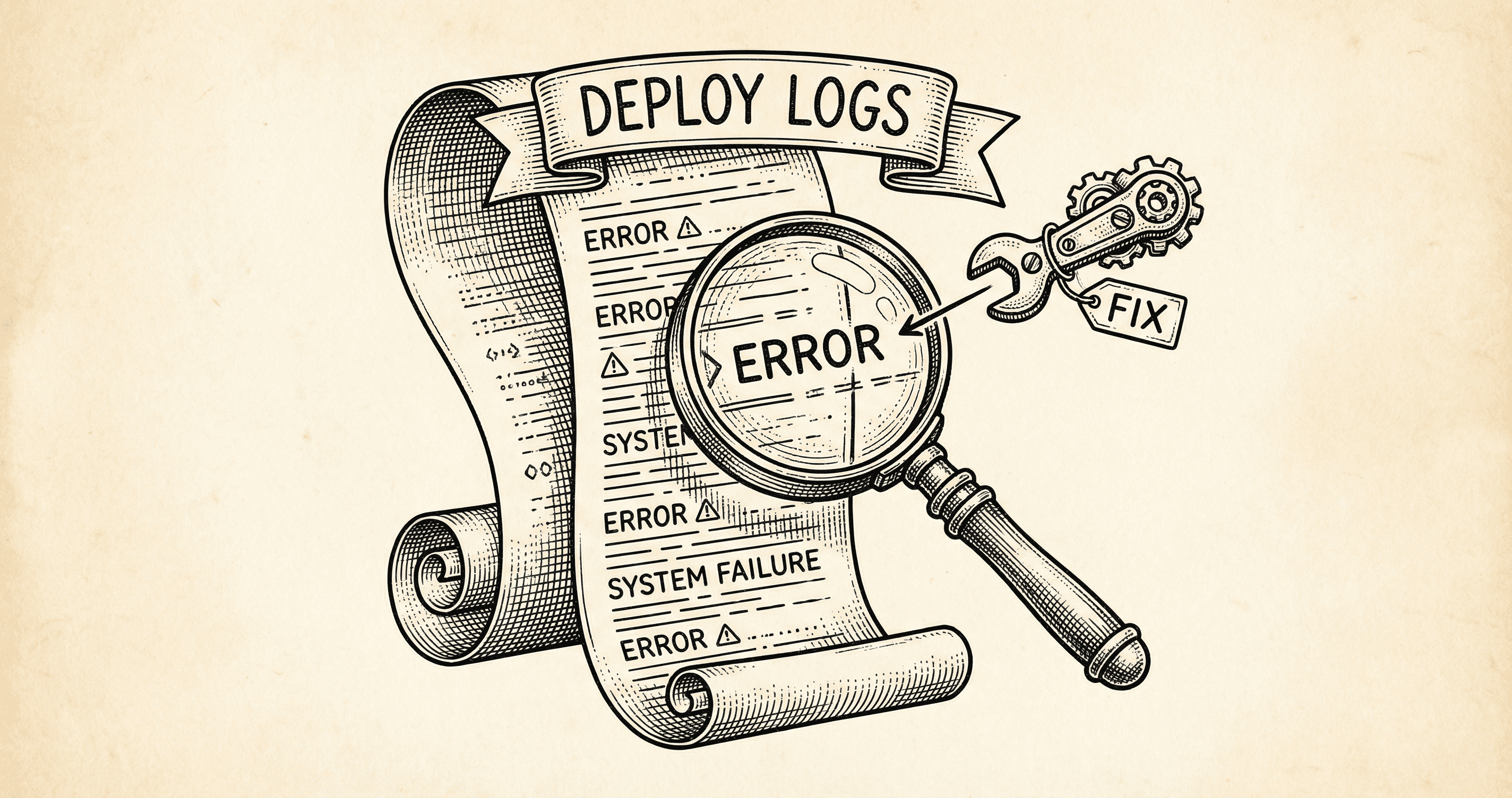
Your code works on your machine. You push to GitHub, and a few minutes later you get an email or a red X: "Deployment failed." It is easy to feel stuck. Deployment errors are not a sign that you are in over your head — they are the system telling you exactly what went wrong and where. This guide walks you through the most common deployment errors, what they mean, and how to fix them so you can get your app live.
This post is part of a short series on going from local to live: Do Not Get Scared → Intro to GitHub → What Is Deployment? (Featuring Vercel) → Getting Your App Online → Deployment errors (this post).
When a deploy fails, your host (e.g., Vercel) runs a build and records every step in the deploy logs. Those logs are your best friend. They usually show the same commands you would run locally (npm install, npm run build) and the same errors you would see in your terminal. The difference is that the host stops the deploy when something fails instead of letting you continue. So the first rule: open the failed deployment, open the logs, and read the last error message. It almost always points to the cause.
Think of deploy logs like a checklist the host runs through. When one step fails, it stops and prints why. Your job is to read that step, fix the issue (often in your code or in the host's environment settings), and push again. No magic — just read and fix.
What it means: The host ran your build command (usually npm run build) and something in that process failed. The application was never deployed because the build did not produce a valid output.
Where to look: In the deploy logs, scroll to the bottom or search for the first block of red text or "Error:". The message often includes a file path and a line number (e.g. app/page.tsx:42:10). That is the first place to look in your code.
Common causes and fixes:
npm run lint locally will show the same errors before you push.npm run test or test in the build script) and a test fails, the build fails. Fix the failing test or the code it is testing, then push.Pro tip: Run npm run build (and npm run lint if you use it) on your machine before you push. If the build fails locally, it will fail on the host. Fixing locally first saves time and keeps your deploy history clean.
What it means: The build tried to import a file or a package that it could not find. That can be a path typo in your code or a missing dependency.
Where to look: The error message usually names the module, e.g. Cannot find module '@/components/Button' or Module not found: Can't resolve 'some-package'.
Common causes and fixes:
import X from '@/components/Buton' (typo) or from '../lib/utils' but the file moved. Fix the import path so it matches the real file location. Path aliases like @/ must match your project config (e.g. in tsconfig.json).package.json. The host runs npm install from package.json; if the package is not listed, it is not installed. Add it with npm install package-name (which updates package.json and lockfile), commit and push.Button.tsx vs button.tsx can cause "module not found." Make sure imports match the exact filename and case.What it means: Your code expects an environment variable (e.g. DATABASE_URL, NEXT_PUBLIC_APP_URL) but it is not set in the host's environment. Locally you might have it in .env.local; the host does not read that file. You must set every required variable in the host's dashboard.
Where to look: Sometimes the build fails if the variable is used at build time (e.g. in a config that runs during build). More often, the build succeeds but the app fails at runtime — when a user opens a page or hits an API route — and you see a generic "Application error" or a blank page. The host's "Runtime logs" or "Function logs" may show the real error (e.g. "X is not defined" or "Missing env var").
Common causes and fixes:
.env.example / your code. Redeploy after adding or changing variables.Next_Public_App_Url is not the same as NEXT_PUBLIC_APP_URL. Copy the name from your code or .env.example and paste it in the host's dashboard.localhost or test keys in production env vars.What it means: The build succeeded and the app was deployed, but when someone visits the site, something throws an error or the page does not render. This is usually a runtime problem: missing or wrong env var, a runtime exception in your code, or a misconfiguration (e.g. wrong URL for API or auth).
Where to look: Check the host's "Runtime" or "Function" logs for the request that failed. You will often see the same error you would see in your terminal or browser console (e.g. "Cannot read property of undefined," or "Missing environment variable X").
Common causes and fixes:
http://localhost:3000 or a dev API URL. In production, use the production URL or an env var (e.g. NEXT_PUBLIC_APP_URL or VERCEL_URL) so the app points to the live site.What it means: The host ran a command (e.g. npm run build or a custom build script) and that command exited with an error code. The actual reason is in the logs above that line — scroll up to see the last error or warning before the exit.
What to do: Treat it like a build failure. Find the last real error message (TypeScript, linter, test, or missing module), fix it, and push again. The "exited with code 1" line is the consequence, not the root cause.
What it means: You added a custom domain in the host's dashboard, but the DNS records at your domain registrar are missing or incorrect. The host cannot serve traffic for that domain until DNS points to them.
Where to look: In the host's domain settings, they usually show the exact records you need (e.g. CNAME to cname.vercel-dns.com or A record to an IP). Compare those to what you have at your registrar.
Common causes and fixes:
cname.vercel-dns.com) will break it. Copy-paste from the host's instructions.npm run build and, if applicable, npm run lint or npm run test. Fix any errors that appear.Deployment errors are not a judgment on your skills. They are feedback. Read the logs, fix the cause, and try again. With this guide and your host's logs, you have everything you need to get from "Deployment failed" to "Live."
npm run build (and lint/test) locally to see the same errors and fix them before pushing.package.json and push.
Error messages can look like gibberish. This guide teaches you how to read them, where to look, and what to do next — so you can fix issues instead of feeling stuck.
Deployment can feel overwhelming. Start here — a short, calm intro to the path from 'it works on my computer' to 'it works for everyone.'
